
How to create a t-shirt mockup in 60 seconds (with free template)
If you sell apparel on Etsy, Shopify, Printful, or Redbubble, the difference between a listing that sells and one that sits is almost always the mockup. A flat product photo from your print-on-demand supplier looks like a thousand other listings. A real-world t-shirt mockup, with your art rendered cleanly on the fabric, looks like a brand.
This guide walks you through producing one in under a minute — no Photoshop, no smart objects, no plugin install. If you have a PNG of your design, you have a mockup in 60 seconds.
What you need
- Your design file: PNG with transparent background works best, but JPEG or SVG are also fine.
- A modern browser (anything from the last two years).
- That is the entire list. No installs, no signup.
Step 1: Pick a t-shirt template
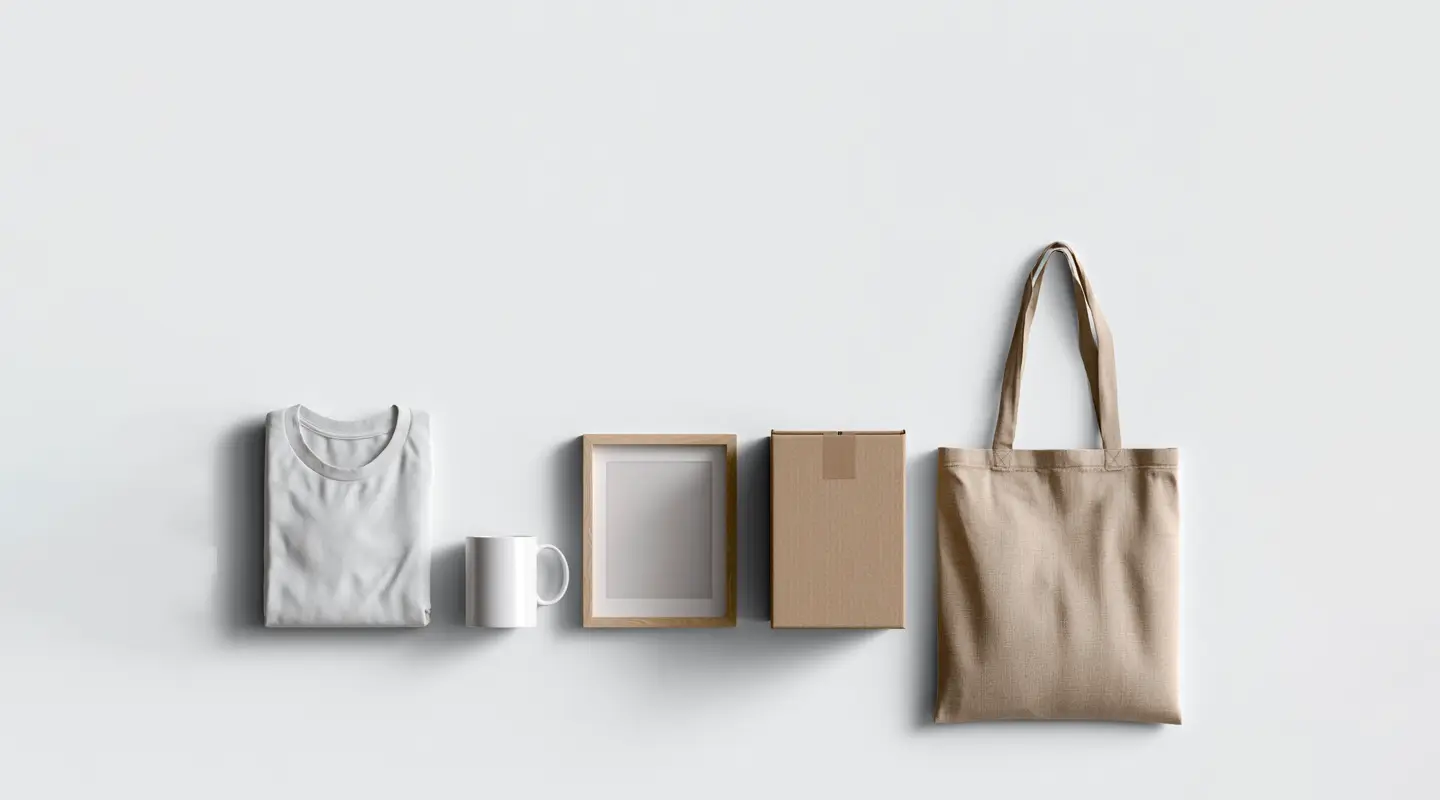
Open the MockMonster mockup library and filter to Apparel > T-Shirts. You will see folded shirts, hanger shots, lifestyle photography (model in studio, model outdoors), and flat-lay arrangements. Pick one that matches the context your buyer is shopping for — lifestyle mockups convert better on social, flat shots convert better on Etsy.
The library has both photo and video mockups. Video adds movement (a model adjusting the shirt, fabric catching light) which earns a longer pause on the buyer's feed.
Step 2: Drop your art onto the shirt
Click the template, then drag your PNG into the canvas (or tap the upload icon on mobile). MockMonster automatically:
- Sizes your design to fit the print area.
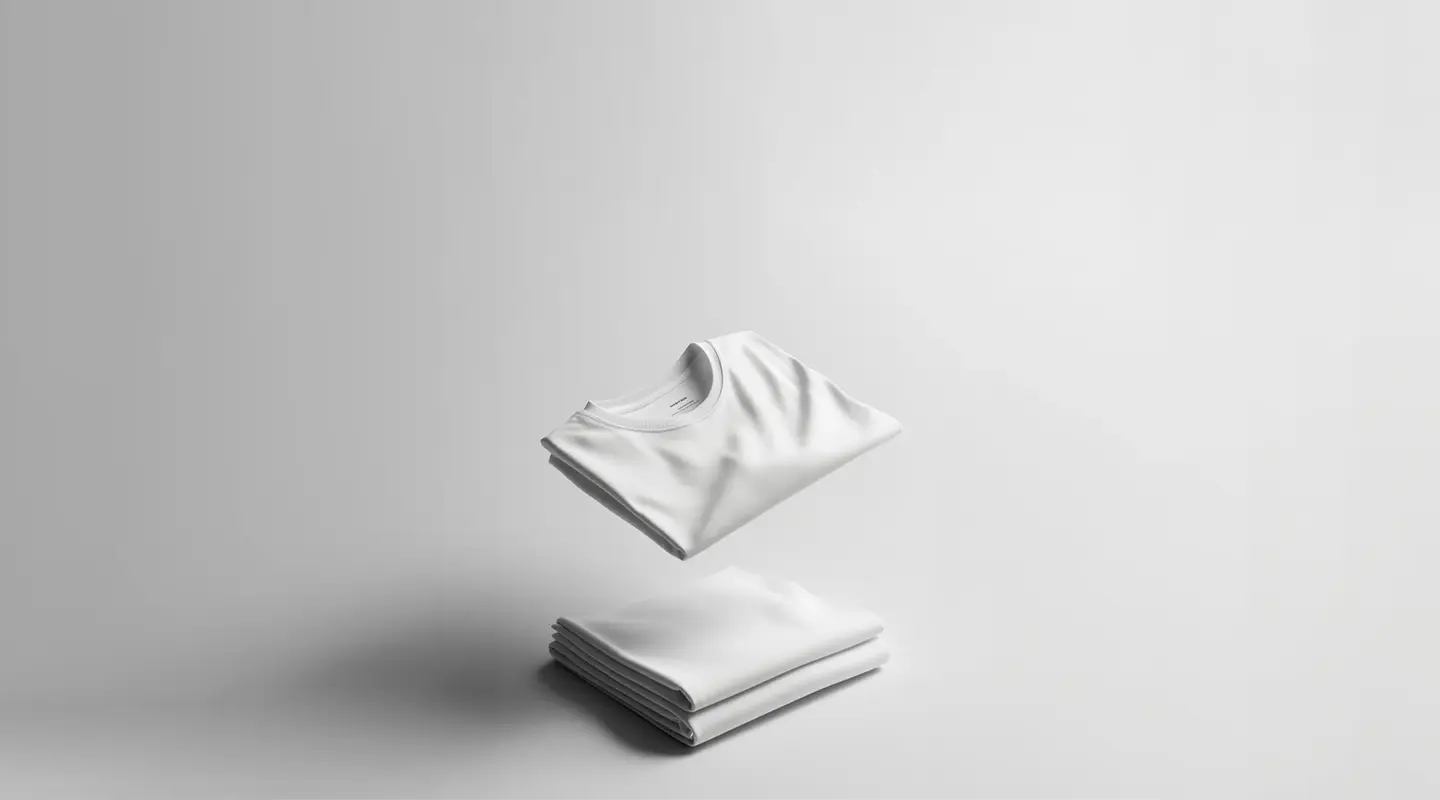
- Applies the fabric warp so the print looks like ink on cotton, not a flat sticker.
- Picks up the shirt's lighting so highlights and shadows track your design.
You can drag to reposition, pinch to scale, or rotate with a finger if you want the art tilted. If your design has a transparent background, the shirt color shows through — tap the shirt color swatch to recolor the garment on the fly.
Step 3: Pick the right aspect ratio for where it will live
This is the step most sellers skip and lose conversions on. Different platforms favour different shapes:
- Etsy listing thumbnails: square, 1:1. The grid crops anything else.
- Instagram feed: 4:5 portrait. It takes up the most real estate as a user scrolls.
- Pinterest: 2:3 portrait, taller is better.
- TikTok / Reels: 9:16 vertical.
- Shopify hero image: 16:9 landscape.
The aspect-ratio selector lives next to the export button. If you are unsure, our aspect ratio calculator can help.
Step 4: Download
Hit Download. The export runs in your browser — no upload, no queue. You get a PNG (or JPEG, or a short MP4 for video mockups) at full resolution, ready to drop into your store. Free downloads carry a small corner credit; the $9/mo plan removes it and unlocks batch export across multiple templates at once.
Step 5: A/B test two mockups, not five
Resist the urge to flood your listing with eight angles. Two is the sweet spot — one main mockup (the strongest visual hook) and one supporting (a different context, like a lifestyle shot if the main is a flat). More than two and shoppers start comparison-fatiguing instead of buying.
Common gotchas
The print looks flat
If your design has no fabric warp showing, you probably picked a poster mockup not a t-shirt mockup. Check the category filter.
The colors look washed out
Convert your design to sRGB before uploading. Adobe RGB and CMYK both display dimmer in browsers.
The art is pixelated at export
Upload at 2x the size you need. A 1200x1200 design will look crisp on a 600x600 thumbnail; the inverse never works.
Why a real mockup matters
A mockup is not decoration — it is the only product photo a print-on-demand seller actually controls. Your supplier ships the shirt and takes a stock photo; that stock photo is also on the thousand other stores running the same blank. Your mockup is what makes your store look like a brand instead of a reseller.
A good mockup answers three questions before the buyer scrolls: How does it fit on a real body? How does the print sit on the fabric? Does it look like something the buyer wants to be seen wearing? Get those three right and conversion follows.
What separates a great t-shirt mockup from a generic one
The fastest way to spot an amateur listing is the mockup. A few specific tells:
- The shirt floats on a pure-white background. Stock-photo lighting, no shadow, no context. Reads as catalog dropshipper instantly.
- The print sits perfectly flat with no fabric warp. Real ink on real cotton sinks into the weave; a sticker-flat print breaks the illusion in a tenth of a second.
- The print is the same brightness as a perfect rectangle. Real prints inherit the shirt's lighting — if your design is brighter or flatter than the shirt around it, it looks composited.
- Generic model poses. Hands on hips, smiling at camera, white studio backdrop. The same model is on a thousand other Etsy stores.
A great mockup fixes those one by one. Real lighting environment, real fabric warp, ambient occlusion under the collar, a model in a context that matches your buyer's mental picture of where they will wear the shirt.
Mockup styles by use case
Different use cases reward different styles. A short menu:
Etsy listing thumbnails
Flat lay or hanger shots. Square aspect, neutral background, design centered and high-contrast. The thumbnail renders at about 180px on the search grid, so anything fussy in the background eats attention.
Instagram feed posts
Lifestyle on a model, 4:5 portrait. Real-world setting (street, cafe, gym) trumps studio every time. The shopper scrolls past a thousand studio shots a week; a candid context earns the pause.
Pinterest pins
Vertical 2:3, scene-heavy. Pinterest rewards inspiration-board aesthetics — the shirt in a styled outfit lay-out, in a curated wardrobe scene, or part of a "summer capsule" set.
Paid ad creative
Carousel of three contexts. Front-of-shirt close-up for the hook, lifestyle-on-model for the desire, detail close-up for the "ah it is a real product" reassurance. Mix flat and lifestyle; do not run three of the same style.
Email campaigns
Wide 16:9 landscape banners. Multiple sizes of the same shirt arranged on a flat — this reads as "here is the full size range" without needing words.
The 60-second checklist
Before you hit download, ask:
- Is the print sized to about 70–80% of the printable area? (Smaller looks tentative, larger looks crammed.)
- Is it centered on the chest at the standard 3 inches below the collar? (Off-center reads as a printing defect.)
- Does the design contrast with the shirt color? (Squint-test it.)
- Is the aspect ratio set for where this mockup will live?
- Does the file name match your listing SEO? (Etsy reads file names.)
Five seconds each. The whole sequence catches 90% of the problems that would otherwise come back as "this looks weird" feedback after the launch.
Try MockMonster free
Drop your art, see it on any product. No signup needed for previews.
Make a mockup →